



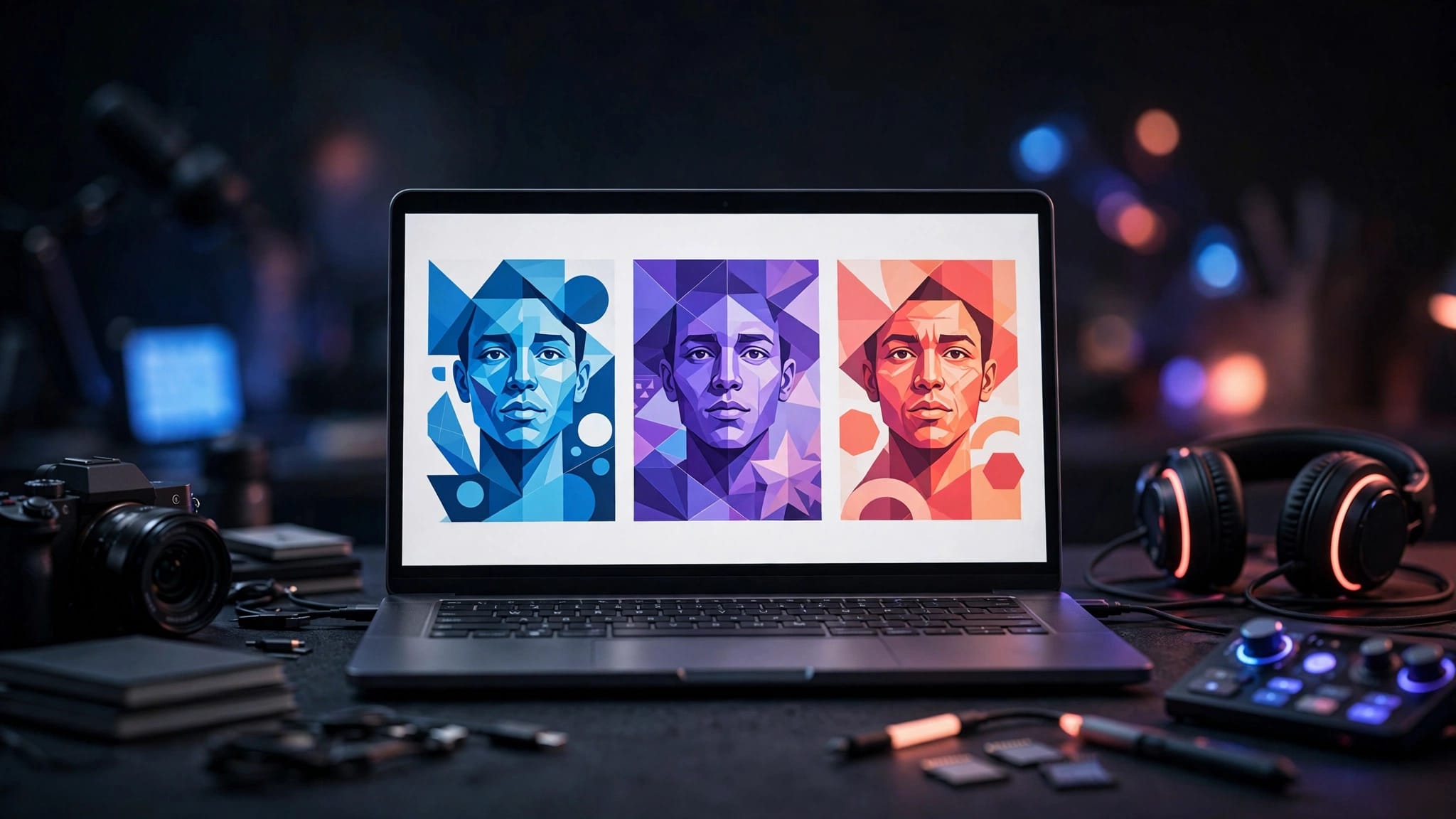
A good video can still get ignored if the thumbnail looks confusing, dark, or too busy. That is why these tools are useful for YouTube beginners. They give content creators a quick text-to-image starting point without advanced design skills or help from a graphic designer.
The best tool is not always the one with the most AI features. It is the one that helps you create clear, clickable thumbnails you can edit and repeat for every upload.
Key Takeaways
- Canva is the easiest starting point if you want templates, simple editing, and prompt-based image ideas in one place.
- Pikzels is worth looking at if you want a more focused YouTube thumbnail generator with AI personas, style training, and thumbnail analysis.
- AI can give you a fast first draft, but you still need to check faces, text, contrast, and whether the image matches your video’s promise.
- Start with three simple thumbnail concepts, not 20 random generations. Consistency matters more than chasing perfect AI art.
- A thumbnail can encourage clicks, but no tool can guarantee a higher click-through rate or more views.
Best AI Thumbnail Makers for YouTube Beginners
Most beginners do not need five subscriptions. Start with one easy design tool, learn what works for your channel, then upgrade only if you need more speed or consistent visuals. ChatGPT is also capable of making incredible thumbnails. My son uses it for his YouTube videos – you can view some of them here:
Canva Is the Best All-Around Starting Point
Canva is a simple choice if you’re new to thumbnail design. You can start with YouTube templates, upload your own photo, remove backgrounds, add shapes, and create readable text.
Its AI thumbnail maker works as a beginner-friendly YouTube thumbnail generator. Its text-to-image feature can create a background, prop, dramatic scene, or visual concept from a prompt.
The biggest advantage is editing. Canva makes it easy to create custom thumbnails and fix spacing, crop a face, add a border, or move text away from the edge.
Pikzels Is Built for YouTube Packaging
Pikzels focuses more on YouTube video packaging. Its tools include thumbnail generation, thumbnail analysis, title generation, persona training, and style training.
Persona training is useful when you want your face or AI character to have better facial consistency across thumbnails. Style training works as a form of style cloning, helping you maintain a similar layout, color feel, or visual identity without copying another creator.
Pikzels isn’t the cheapest first step, but it may make sense once you’re uploading regularly and want a repeatable thumbnail workflow.
WayinVideo Helps With Video Workflow, Not Just Thumbnails
WayinVideo is more of an AI video workflow tool than a dedicated thumbnail maker. It can help with video summaries, transcripts in more than 100 languages, clipping, and exporting content.
Its pricing page shows a free option and a paid plan surfaced at $4.99 per month. The free option includes 200 one-time credits, 720p export, and limited storage time. Plan names and details can change, so check the current page before paying.
Use a tool like this to find strong moments in your video, then take that idea into Canva or another thumbnail editor. If you’re still building your content system, these inexpensive AI tools for social media content can help you keep costs under control.
How AI Thumbnail Makers Create Images
These tools are fast because they turn a short idea into a visual starting point. They are not mind readers, though. Better inputs usually give you better results.
Prompt-to-Thumbnail Generation With Text-to-Image
A text-to-image tool turns your prompt into a visual draft. An AI image generator works best when you provide a subject, mood, color direction, and space for text.
For beginners, prompt engineering simply means giving the tool a focused visual direction. Try something like:
“Close-up surprised face, bright blue background, large gold coin, strong contrast, clean space on the left for three words.”
That gives the AI a subject, mood, colors, and room for text. Keep your first prompt simple. You can always add details after you see what is missing.
Avoid prompts with ten objects, long text, and several unrelated ideas. The image may look impressive, but it will usually look messy at small size.
Facial Consistency and Style Cloning
Some specialist tools let you train a persona with photos of your face. This can help with facial consistency across thumbnails and give your channel a stronger visual identity.
Style cloning usually means giving the tool a reference image so it can copy the broad visual feel. It should not mean copying another creator’s exact thumbnail. Use references for ideas like bold contrast, a close-up face, or a simple two-color background.
AI can still distort eyes, teeth, hands, glasses, and small objects. Always zoom in before exporting. If the face looks strange, replace it with a real photo of yourself.
AI Thumbnail Maker Pricing: What Beginners Should Watch
Monthly prices do not tell the whole story. Many AI thumbnail makers use credits, and one polished result may cost more credits than you expect.
Compare pricing plans alongside credit costs, export limits, storage, and workflow fit. Check each tool’s live pricing page before subscribing, since plans can change.
| Tool | Best for | Pricing detail to know |
|---|---|---|
| Canva | Templates and easy editing | Free tools are available, with some AI features depending on your plan |
| Pikzels | Dedicated YouTube thumbnail workflow | Annual pricing lists $28 or $56 per month, billed yearly |
| WayinVideo | Video clips and transcripts | A paid price of $4.99 per month is listed, with plan details to confirm |
The table shows why beginners should compare workflow, not only price. A tool’s value also depends on how efficiently you can create and revise thumbnails.
Understand Credit Costs Before You Subscribe
Pikzels pricing lists credits for different tasks. A persona costs 50 credits, style training costs 50 credits, thumbnail generation costs 10 to 20 credits, analysis costs 5 credits, and title generation costs 1 credit.
That means your first few thumbnails may cost more than later ones if you train a persona or style. It may still be worth it if you publish often and want your channel to look consistent.
Before subscribing, answer three questions:
- How many long-form videos do you upload each month?
- How many thumbnail versions do you normally need before one looks right?
- Do you need AI art, or do you mainly need an easy editor for your own photos?
Free Credits Are for Testing, Not Building a Whole Channel
Free plans are good for learning prompts and testing image quality. They may include lower-resolution exports, temporary storage, watermarks, or limited generations.
Don’t spend weeks moving between free tools trying to avoid every cost. Pick one tool, make five thumbnails, and learn what looks good. You’ll improve faster.
What Makes a YouTube Thumbnail Work
Good thumbnail design communicates the video’s promise in a split second. It should create interest without confusing people or promising something your video doesn’t deliver.
Keep Text Big and Short
Use two to five words when text is needed. On a phone screen, a full sentence will disappear.
Choose one bold font. Give it a dark outline or place it over a clean background. If you can’t read the words at thumbnail size, your viewers can’t either.
Use contrast on purpose. A pale face on a pale background blends in. A bright face against a darker or opposite-colored background is easier to notice.
Faces, Branding, and Dimensions Matter
A close-up face with a clear expression can work well, especially for reaction videos, tutorials, and personal channels. Whether you use a text-to-image tool or a real photo, choose an expression that fits the video. You don’t need to look shocked in every thumbnail. Curiosity, confusion, excitement, or focus can fit better.
Keep the same two or three colors across your channel. You can also repeat a small border, photo style, or font. That helps viewers recognize your videos without making every thumbnail identical. Short text, deliberate contrast, a clear subject, and consistent branding can support high CTR thumbnails, but no design guarantees performance.
Canva recommends a 1,280 by 720 pixel layout with a 16:9 ratio for YouTube thumbnails. Its current guidance also lists a 640-pixel minimum width and a 2 MB maximum file size. Use those YouTube thumbnail size guidelines when exporting.
A Simple Workflow for Creating Thumbnail Variations
Do not wait until your video is uploaded to think about the thumbnail. Make it while your title and opening hook are still fresh in your mind.
Automated tools can provide a quick draft, but you still need to judge the idea yourself.
Start With One Clear Promise
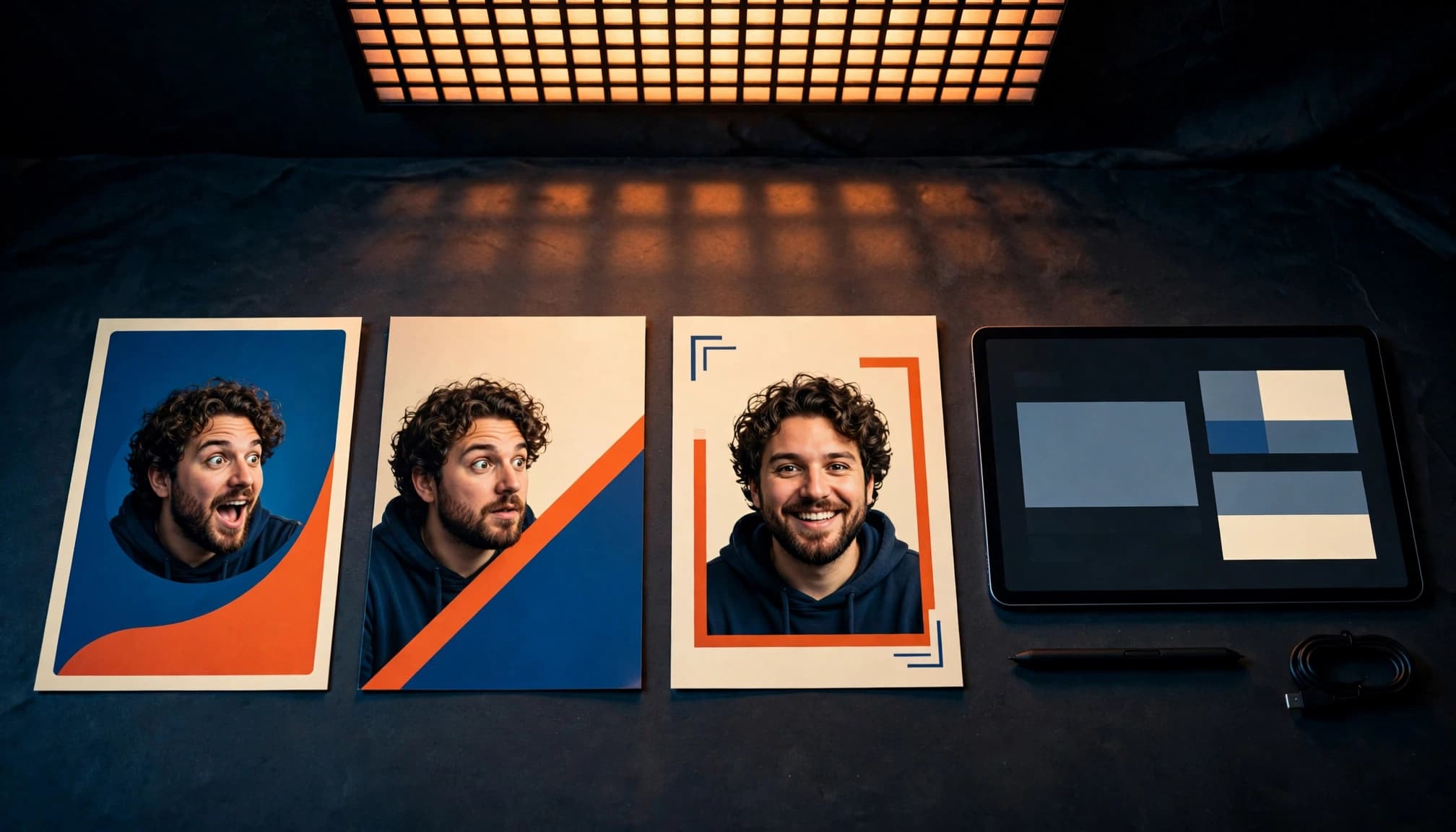
Write the main video promise in plain language. For example, “I tested cheap AI video tools” is the idea. Your thumbnail might show a surprised face, three simplified tool windows, and the words “Worth It?”
Do not repeat the full title on the image. The title and thumbnail should work together, not say the same thing twice.
If your video uses an AI video generator, this beginner’s guide to InVideo can help you keep your video and thumbnail workflow simple.
Make Three Different Versions
Create three concepts with one main difference in each version. For early A/B testing, compare two clearly different concepts at a time.
- Use a close-up face in the first version.
- Use a single strong object or result in the second.
- Use a before-and-after visual in the third.
A text-to-image tool can create one starting visual for a variation.
Do not change everything at once. If every color, image, face, and text choice changes, you will not know what made one version stronger.
A thumbnail that looks great at full size can fail on mobile. Shrink it until it is tiny before deciding it is finished.
You can prepare several versions, but do not assume YouTube automatically tests them for you. Use video analytics to monitor impressions, click through rate, audience response, and overall performance over time. After enough impressions accumulate, use A/B testing to compare two versions. Change one clear thing when you have a reason, not because you are panicking after a few hours.
Copyright and Commercial Use With AI Thumbnails
AI-generated does not mean risk-free. Each platform has its own license, and those terms can change. Check the current commercial-use rules before using generated images for a monetized channel or reusing them on social media.
Do not upload copied artwork, movie characters, logos, screenshots, or thumbnails that look like a direct copy of another creator. Reference a general style, then make the result your own.
Be careful with face swaps too. Use your own face or get permission from the person pictured. A generated image should also match the video honestly. Misleading thumbnails can bring short-term clicks, but they can hurt trust with viewers.
FAQ
Can AI tools guarantee a higher click through rate?
No. These tools can help you generate stronger visual ideas faster, but they can’t guarantee more clicks or channel growth.
Your topic, title, audience, competition, and video quality all matter. Use AI as a creative helper, then learn from your own uploads.
Can I use my own face in AI-generated thumbnails?
Yes, many tools let you upload a photo or train a persona. This can make your face more consistent across designs.
Still, keep a real photo ready. AI sometimes changes facial details, and a clean real image often looks more trustworthy.
Should beginners use AI instead of Photoshop?
For most beginners, yes, at first. Photoshop is powerful but takes time to learn. Canva and specialist tools are easier if you haven’t developed advanced design skills.
Later, you can learn more advanced tools if you need detailed retouching or complete creative control.
Final Thoughts
The best thumbnail tools save time when you use them for ideas, not as a replacement for a human designer. Start with Canva if you want an easy editor, then consider Pikzels if thumbnail production becomes a regular part of your channel.
Keep each thumbnail clear, honest, and easy to read on a phone. Simple beats complicated when someone is deciding what to watch.
