




Creating one Instagram slide is manageable. Creating seven that look consistent can take much longer. AI can turn one idea into useful social media content and Instagram carousel posts, giving your content strategy a repeatable starting point.
The easiest approach is to let AI handle the first draft, then use Canva for the layout and final edits. Start with a repeatable workflow for Instagram carousel posts, leaving more time to create helpful carousel posts than choose tools.
Key Takeaways
- Start with one clear outcome and use AI to draft slide-sized copy; review every claim, remove repetition, and adapt the wording to your voice.
- Use Canva to create consistent, readable slides. Keep the dimensions and layout consistent, and check the design on your phone before publishing.
- Choose a publishing method before creating a long carousel: Instagram’s app supports up to 20 items, while API-published carousels are limited to 10.
- Preview slide order, cropping, spelling, and accessibility details before posting, then track metrics that match your goal, such as saves or profile visits.
- Save effective prompts and layouts so you can improve and repeat your workflow without starting from scratch.
Understand the Carousel Format First
An Instagram carousel is one feed post containing several images, videos, or both. People swipe through the slides without opening separate posts.
This format works well when your content needs a little explanation. Tutorials, product demonstrations, product launches, event recaps, before-and-after posts, and customer reviews that build social proof give each slide a clear job.
For educational content, think of the carousel as a short lesson. The opening introduces the problem. The middle explains the steps. The final slide gives readers something useful to do next.
Hootsuite’s Instagram carousel guide explains that the Instagram app supports up to 20 photos or videos in one post. You don’t need to use all 20. Start with five to seven slides when that covers your topic clearly.
The publishing method matters, too. Instagram’s in-app limit differs from API-based scheduling limits, so check your publishing route before designing a long carousel.
Carousel posts give readers several opportunities to interact with your content. That doesn’t guarantee better engagement than a single image or Reel. Your topic, opening slide, and usefulness still matter.
Choose Tools for Your Instagram Carousel Posts
You don’t need a separate AI subscription for every part of your social media content workflow. A writing assistant and a design tool are enough for your first carousel.
Here’s a simple way to divide the work.
| Tool | Use It For | What You Still Need to Check |
|---|---|---|
| ChatGPT | Slide outlines, short copy, and captions | Accuracy and your writing voice |
| Claude | Turning longer material into slide drafts | Missing context and repeated ideas |
| Canva | Templates, graphics, and slide exports that support a consistent visual identity | Readability, spacing, and cropping |
Choose ChatGPT or Claude based on your content strategy, rather than learning both at once. Use Canva to arrange the finished content, even when AI helps generate the visuals.
ChatGPT has free access with usage limits. Canva also offers free design features, but AI access, templates, and assets can depend on your plan. Check what your account includes before building around a paid feature.
If you’re comparing subscriptions, these affordable social media AI tools can help you explore beginner-friendly options.
Pay for a tool when it solves a problem you encounter regularly. Creating your first carousel doesn’t require a large software budget.
Plan the Slides Before Designing

Choose One Clear Outcome
Decide what readers should understand or complete after swiping. A focused topic is easier to explain and design.
For a beginner content account, teaching someone to organize a weekly posting calendar is more useful than discussing social media growth broadly.
Give each carousel slide one role. Think of the sequence as brand storytelling: open with the reader’s problem or desired result, use the middle slides to explain, and finish with one relevant call to action.
You can also repurpose an existing blog post or video transcript. Choose one useful lesson for educational content rather than squeezing the entire source into a carousel.
Ask AI for Slide-Sized Copy
Give your writing assistant an audience, topic, slide count, and clear limits. Paste your source material when the carousel depends on existing information.
Try this prompt:
“Write a seven-slide Instagram carousel teaching beginner creators how to organize a weekly content calendar. Use simple language. Give each slide a headline under eight words and body copy under 30 words. Include one practical action per teaching slide. End with a reminder to save the post. Don’t invent statistics or tool features.”
Those word limits are starting points, not Instagram rules. Shorten anything that feels crowded.
Review every claim before designing. Remove repeated advice and replace formal wording with language you’d use yourself. These social media ChatGPT prompts offer more ways to guide your drafts.
Build Consistent Slides in Canva
Set the Size and Reuse the Layout
For a straightforward portrait carousel, create a Canva design at 1080 × 1350 pixels. Its 4:5 aspect ratio leaves room for readable text.
Instagram’s image resolution guidance recommends photos at least 1080 pixels wide, with an aspect ratio between 1.91:1 and 3:4. Square designs at 1080 × 1080 pixels are another practical choice.
Keep every slide the same size. This reduces cropping surprises, especially when combining photos and videos.
Design one teaching slide first. Choose up to two fonts, a small color palette, and consistent margins to support your visual identity. Duplicate that page for the remaining slides, then replace the copy and visuals.
Canva templates and other design templates can offer a useful starting point, but review each slide to ensure the visuals support your brand storytelling.
Check the design on your phone. Text that looks comfortable on a desktop can become difficult to read in the feed.
Generate Visuals Without Changing the Brand
Use Canva’s available AI image tools or another generator for supporting backgrounds and illustrations. Describe the subject, colors, composition, and space needed for text.
Ask for images without lettering. Add headlines yourself in Canva so you can correct spelling and keep the typography consistent.
If the same AI character appears across slides, reuse a reference image where your tool supports it. A similar text prompt alone doesn’t reliably preserve a face.
Compare the results for changes in clothing, facial features, and small details. For product posts, use real product photos when accuracy matters. Generated images shouldn’t misrepresent what customers will receive.
Create a Panoramic Carousel in Canva
A panoramic carousel uses one wide design divided into separate slides. Backgrounds or illustrations continue across the boundaries as readers swipe, creating a seamless carousel.
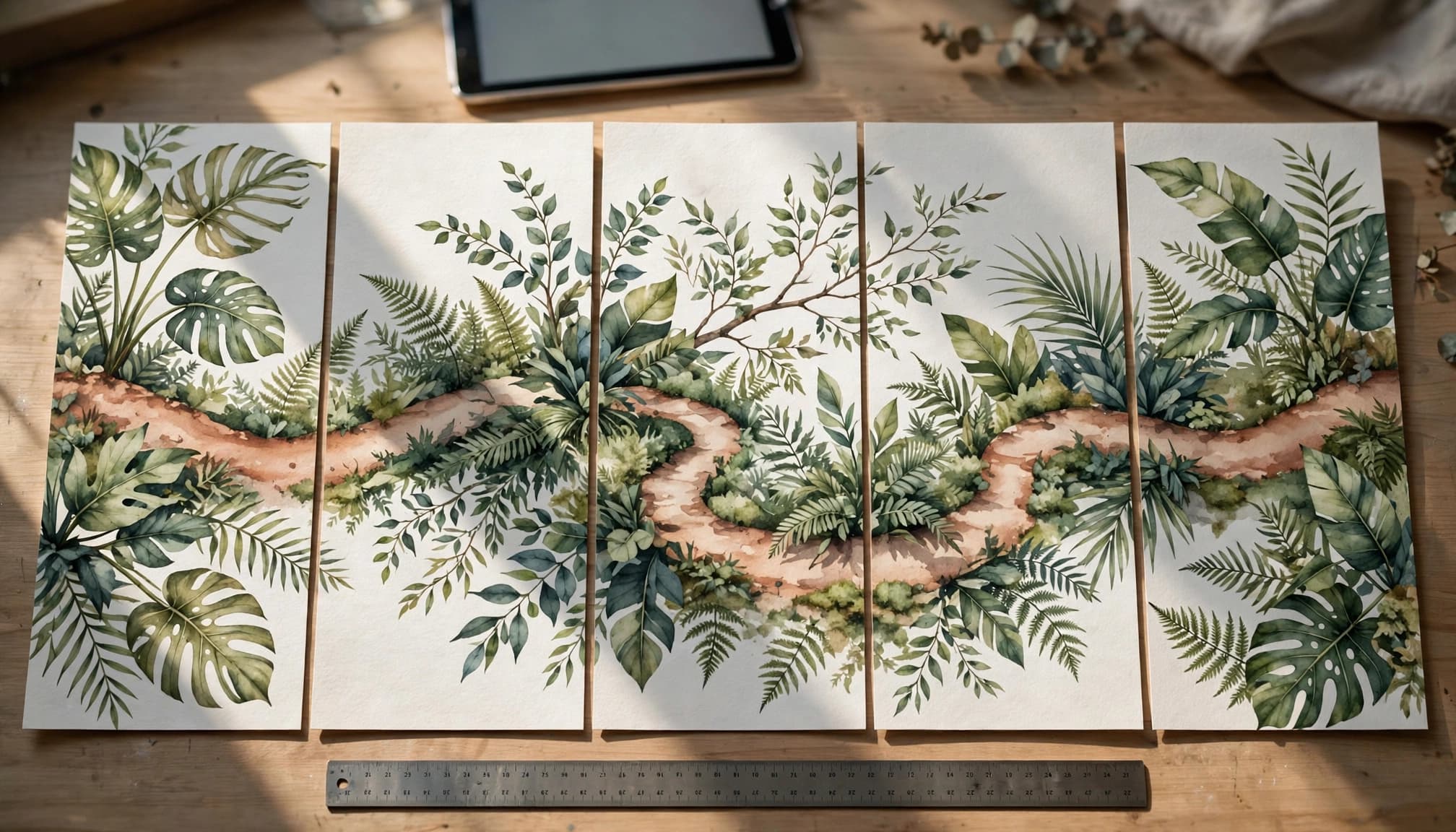
For five portrait slides, multiply 1080 pixels by five. Your full Canva canvas should be 5400 × 1350 pixels.
Use this workflow:
- Create the wide canvas and add vertical guides at 1080, 2160, 3240, and 4320 pixels.
- Arrange the background across the full width, keeping important text inside each slide area.
- Download the complete design as a high-quality PNG.
- Open it in an editor such as Photopea and export five consecutive sections, each exactly 1080 × 1350 pixels. This preserves the portrait aspect ratio.
- Name the files in order and inspect the joins before uploading.
In Photopea, you can select each section with a fixed-size rectangular selection. Copy it into a new 1080 × 1350 document, then export that section as PNG. Repeat across the original image.
Canva creates the wide design in this method. Don’t assume downloading it will automatically produce separate carousel slides.
Keep headlines, faces, and product details away from panel boundaries. A decorative line can cross a join, but each individual slide should remain understandable.
Use a panoramic layout for carousel posts when a continuous background supports the story, but start with a standard carousel if this feels complicated. Panoramic layouts are optional, and clear content matters more than a continuous background.
Review and Publish Without Cropping Surprises
Check the Export and Caption
Export standard Canva slides as separate PNG or JPG files. Confirm each file has the intended dimensions and aspect ratio, and that the slides appear in the right order.
Read through your Instagram carousel on your phone before posting. Check spelling, contrast, text size, and whether any element sits too close to an edge.
Write a caption that adds context rather than repeating every slide. AI can draft a short summary, one useful detail, and a relevant question or action.
Add descriptive alt text where the publishing workflow allows it. For videos, include captions so the message remains understandable without sound. Use only visuals, music, and customer content you have permission to publish. Customer reviews and other user-generated content can offer social proof, with permission to share.
Choose the Right Publishing Route
For direct posting, select multiple items for your Instagram carousel, arrange them in order, and inspect the preview before sharing.
To schedule posts in advance, explore Instagram’s available options, Meta Business Suite, or tools such as Buffer, Later, and Sprout Social. Features depend on your account and publishing method.
Meta’s Content Publishing documentation limits API-published carousels to 10 images, videos, or a combination of both.
That distinction matters: the app’s 20-item allowance doesn’t mean every scheduler can automatically publish 20 items.
Check the scheduler’s current media requirements before uploading. Preview mixed-media posts carefully, since videos and photos may need different preparation.
Track Results and Save What Works
Measure the Response You Wanted
Choose a main goal before publishing. Educational posts may prioritize saves. A product demonstration may focus on profile visits, questions, or website activity.
Use Instagram Insights on an eligible professional account to review available metrics. Compare engagement signals such as saves, shares, comments, and reach across similar posts.
For a simple comparison, calculate saves divided by reach. Multiply the result by 100 to get a percentage, a useful save-based engagement rate. Use the same calculation each time.
Don’t judge every carousel by likes alone. A useful tutorial can earn saves without many comments, so record results in a simple performance report. Compare results after similar periods so older posts don’t receive an unfair advantage.
Build a Small Prompt Library
Save the prompts, layouts, and visual references that produce useful results. Record the topic, opening headline, slide count, and any edits the AI draft needed.
This helps you improve the process without rebuilding it each week. If AI repeatedly writes too much, tighten the next prompt’s length limits.
Plan a posting pace you can maintain, whether that’s daily or a few times a week. Use a content calendar to map ideas to your broader content strategy. A ChatGPT content calendar workflow can help organize drafts and scheduled posts.
When repurposing a carousel for another platform, adapt the opening and format. Keep the core lesson, but change how you present it.
Frequently Asked Questions
How many slides should an Instagram carousel have?
Start with five to seven slides if that’s enough to explain your topic clearly. Instagram’s app supports up to 20 items, but API-published carousels are limited to 10.
What size should I use for Instagram carousel slides?
A practical portrait size is 1080 × 1350 pixels, with a 4:5 aspect ratio. Square slides at 1080 × 1080 pixels are another option; keep every slide the same size to reduce cropping surprises.
Can AI create the whole Instagram carousel for me?
AI can draft slide copy and help generate supporting visuals, but you should verify claims and edit the wording before publishing. Use a design tool such as Canva to arrange the slides and check readability, consistency, and accuracy.
How can I tell whether a carousel performed well?
Choose a goal before posting, then compare relevant metrics such as saves, shares, comments, reach, or profile visits. For a simple save-based engagement rate, divide saves by reach and multiply by 100.
Start With One Repeatable Carousel Workflow
AI can make Instagram carousel posts easier to plan and produce, but your review keeps them accurate and useful. A focused idea, readable slides, and a reliable publishing method lay the foundation for an effective Instagram carousel.
Create one carousel with a writing assistant and Canva before adding more tools. Save the prompt and template that worked, then use your results to improve future carousel posts.
Your next carousel should begin with a tested starting point, not another blank canvas.
