



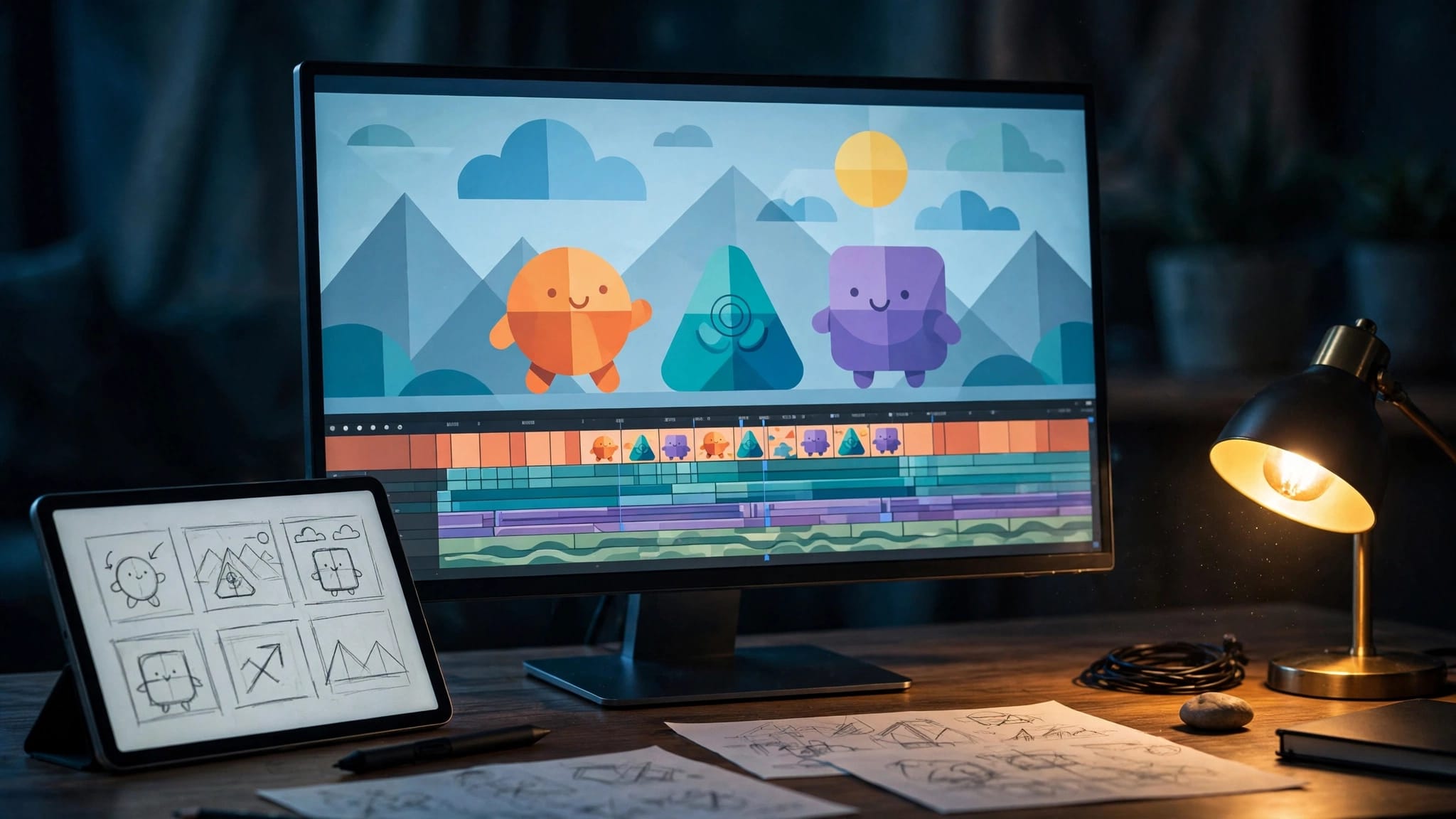
You have a useful idea, but turning it into animated explainer videos can make content creation feel like a big project. The best animated explainer video tools help you build scenes and narration. This explainer video software can turn a video script into a workable first draft without requiring professional video editing software.
Your starting point matters: a training document needs a different workflow than a character-led product story. Choose for the video you need, then compare price and export limits to see whether a free plan can produce a publishable video.
Key Takeaways
- Vyond and Powtoon are strong choices for business explainers, especially when you’re starting with documents or presentation slides.
- Animaker suits character animation, while Canva is useful for simpler, template-based videos.
- Check a free plan for watermarks, download limits, and AI credits before paying. A low advertised price doesn’t always cover your finished video.
Choose Animated Explainer Video Tools by Workflow
Start with the visual style your audience needs. Different animation styles suit different stories: a talking character can explain a customer problem, while a simple diagram can make a technical process easier to follow.
Here’s a quick comparison.
| Tool | Best fit | Main trade-off |
|---|---|---|
| Vyond | Business training and document-based explainers | Higher starting cost |
| Powtoon | Animated presentations and document conversion | Plan-specific export limits |
| Animaker | Character-led and infographic videos | Watermarked free exports |
| Canva | Simple branded explainers | More manual scene planning |
| VideoScribe | Whiteboard-style explanations | Narrower visual style |
| InVideo AI | Prompt-based narrated videos | Less precise animation control |
Choose your explainer video software shortlist by workflow rather than the longest feature list. You’ll save time if the tool already supports your preferred style. If you specifically need ai avatars, verify that a shortlisted tool supports them.

Vyond and Powtoon for Business Explainer Videos
These two options suit businesses and educators who need repeatable videos rather than a different visual style every time.
Vyond: Best for Repeatable Training Videos
Vyond combines editable animation with AI-assisted video creation. Vyond Go uses a text to video workflow. It accepts prompts, a video script, documents, and URLs, so you don’t have to start with a blank project.
That makes it useful for onboarding, internal training, and explaining business processes. Its Vyond Go input guide covers these starting options.
The main advantage is the editing step after generation. You can refine the explanation rather than accept the first draft.
The trade-off is cost and learning time. Creating consistent character scenes still requires decisions about timing, movement, and layout. Choose Vyond when you’ll reuse those skills across several videos.
Powtoon: Best for Animated Presentations
Powtoon is a practical choice when your explanation already exists as slides or a written document. Its AI document-to-video feature supports document to video conversion from PDFs and presentation decks.
It suits lesson summaries, company updates, and product introductions that benefit from animated text and visuals.
Keep each scene focused. A document can contain useful detail without every paragraph belonging in the video.
Powtoon’s free plan and export allowances deserve attention before you subscribe. If you’re creating several videos each month, compare the included downloads with your publishing schedule.
Animaker and Canva for Beginner-Friendly Animation
These tools are worth considering when you want approachable editing and don’t need a complex business production system.
Animaker: Best for Character-Led Explainers
Animaker offers character animation, whiteboard videos, and infographic-style videos. Its text-to-animation features provide an AI-assisted starting point for scene creation.
It’s a useful choice for explaining customer problems, classroom topics, or everyday processes with animated characters and visual examples.
You’ll still need to adjust scenes and narration. Automated visuals can look reasonable while missing the point of a sentence.
Animaker’s free plan and pricing details confirm that free exports carry a watermark. Use that tier to test the editing experience before choosing a paid plan.
Don’t assume document conversion is included simply because text-to-animation is available.
Canva: Best for Simple Branded Explainers
Canva is helpful when you want animated text, icons, uploaded images, and custom branding. It’s especially practical if you already use it for presentations or social graphics.
Its video templates and drag and drop workflow can help you create animated slides. Check which elements are included in Canva’s free plan before building around them.
A simple product introduction can work well as a sequence of animated slides with narration. You don’t always need characters or elaborate movement.
The limitation is how much planning remains yours. Canva’s AI features can help with individual assets, but you’ll still arrange scenes and match them to the script.
Choose it for straightforward videos where easy revisions matter more than detailed character animation.
VideoScribe and InVideo for Different Visual Styles
These options solve different problems. Decide whether you need a drawing-based explanation or a generated video assembled around narration.
VideoScribe: Best for Whiteboard Explainers
VideoScribe focuses on whiteboard video animation, where drawings appear gradually as the narration explains an idea.
This style works well for lessons, processes, and explanations that build one point at a time. Character animation is better suited to stories involving people, actions, and conversations.
VideoScribe is a specialist animation option, not a fully automated production system. You can use AI separately to draft your script or prepare narration.
Review VideoScribe’s plans and usage terms before buying, especially if you’re producing videos for clients.

InVideo AI: Best for Fast Narrated Drafts
InVideo AI is a video maker that uses artificial intelligence to assemble scripts, visuals, captions, and narration around your instructions. It’s helpful when you want a rough draft without managing every timeline detail.
Stock footage or generated clips aren’t the same as editable character animation or precise animated scenes. Check the output carefully if you need repeatable characters or exact diagram movement.
The beginner’s InVideo creation guide covers generating a draft and refining its text, visuals, and audio.
Start there if speed matters more than detailed animation control.
Compare Pricing, Watermarks, and Export Limits
Compare pricing plans by the cost of a usable export, not just the subscription headline. These are useful starting figures for October 2026.
| Tool and plan | Listed price | Important limit |
|---|---|---|
| Vyond Starter | $99 monthly or $699 annually | 100 video/GIF downloads per user monthly |
| Animaker lowest paid plan | $15 per month listed | Confirm billing terms and export allowances |
| Powtoon Lite | $15 per month, billed yearly | Five unbranded exports monthly |
| Powtoon Professional | $40 per month, billed yearly | Review current feature and export allowances |
Annual pricing means an upfront commitment. Vyond Starter’s annual price works out to about $58 per month, but you pay $699.
A free plan can help you test a tool, but compare its export limits with the paid options before choosing.
Vyond’s plan comparison also lists 200 monthly downloads per user for Professional. AI generation credits are a separate consideration.
Powtoon’s free plan has branded exports, a 720p limit, and a three-minute maximum. Its plan comparison explains the paid options.
A download allowance doesn’t tell you how many AI generation attempts are included. Check both before planning a batch of videos.
Also check premium assets, narration allowances, and client-use terms. A free preview is useful for testing, but it may not be suitable for publication.
Turn a Script or Document into an Explainer Video
Think of AI as your rough-draft helper. It can reduce preparation time, but your final review keeps the explanation useful.
Use this simple video creation process:
- Choose one question your viewer needs answered. Give the tool your audience, goal, preferred style, and approximate length.
- Prepare the source material. Shorten documents to the relevant sections, remove private information, and check product facts before drafting your video script.
- Generate the first draft. Use document conversion where supported, or paste a focused video script into the video maker.
- Review the explanation before adjusting effects. Correct the wording, replace unclear visuals, and check the narration.
- Export a test and watch it on a phone. Look for small text, awkward pauses, caption errors, and distracting music.
For marketing videos, introduce the viewer’s problem, show the solution, explain the outcome, and offer one next step. That step might support a goal such as improving conversion rates. Educational videos can finish with a short recap instead.
If you use a voiceover generator, listen closely for errors in names, abbreviations, and technical terms. If you record your own voice, use a quiet room and keep the microphone position consistent.
Don’t perfect every transition immediately. First make sure the viewer can understand the message without extra explanation.
Keep Technical Software Explainers Accurate
Technical videos need more control than a general product introduction. A diagram of an API request or database connection must show the correct relationships.
Create or upload an approved diagram instead of asking a video generator to invent the architecture. Reveal one connection at a time, and match each movement to the narration.
For software tutorials, combine a short animated introduction with a real screen recording. Animation can explain the concept, while the recording shows the actual buttons and steps.
When comparing animated explainer video tools, check whether the video editing software lets you replace visuals, adjust timing, and correct labels easily. Those controls matter more than a large effects library when accuracy is the priority.
Frequently Asked Questions
How Long Should an Animated Explainer Video Be?
For a focused marketing introduction, 60 to 90 seconds is a practical starting target. It isn’t a universal rule.
Wistia’s video-length guidance shows why purpose matters. A lesson or technical walkthrough may need more time. Keep the opening direct and remove anything unrelated to the viewer’s question.
Can You Make Explainer Videos Completely Free?
You can test several tools on a free plan, but unrestricted AI production isn’t realistic. Animaker and Powtoon watermark free exports, while Vyond offers a watermarked trial.
Canva’s free plan can support simple projects using free elements and your own uploads. Premium assets and AI allowances still need checking.
Which Tool Is Easiest for a Complete Beginner?
Canva is a sensible starting point for animated slides. Animaker is worth testing if characters are central to your explanation.
If you already have a document, try Vyond Go or Powtoon’s document conversion. Generate one short sample before subscribing, then check how easily you can change the wording, scenes, and voice.
Start with One Clear Explainer
The right explainer video software depends on your next video, its visual style, and how easily you can finish and revise it. Check the cost of publishing without unwanted branding.
Start with one clear message and a short test video. For a marketing explainer, a short test can provide a baseline for measures such as conversion rates. You’ll learn more from editing that first draft than from comparing every feature on every platform.
